


As organisations evolve their intranet strategies, many turn to SharePoint Online hub sites to organise large volumes of content, connect related sites and deliver consistent navigation and branding.
With recent enhancements around multilevel hub hierarchies, staging an information architecture (IA) that scales with governance, usability, and maintainability in mind is essential.
In this article, I will aim to unpack the key considerations you should think through when designing hub based IA in SharePoint Online including theme inheritance, permissions, navigation, search, and governance and offer actionable patterns you can apply based IA in SharePoint Online.
What Are Hub Sites and Why They Matter?
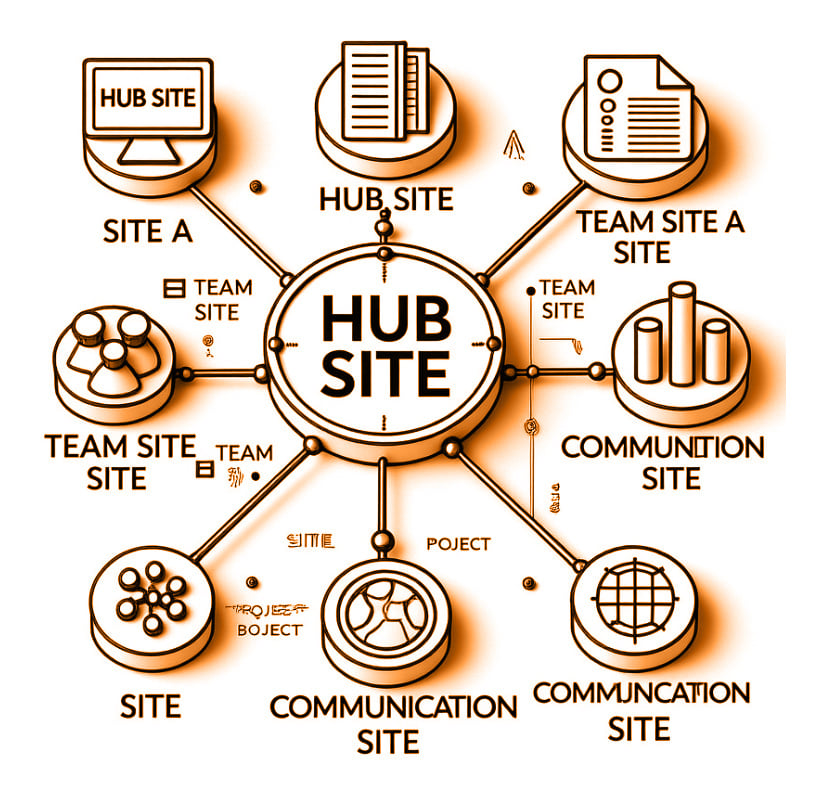
A SharePoint hub site is a container that connects multiple related sites into a logical grouping. Hub sites unify:
- Navigation across associated sites
- Look and feel through theme inheritance and feel through theme inheritance
- Search aggregation across a common scope
- Consistent business context for users.
By aligning related sites under a hub, organisations can make it easier for users to find relevant content and build scalable information architecture environments.
Hub Site Hierarchy Structure
Historically, SharePoint supported a flat hub model.
Now, Microsoft allows a two-level hierarchy:
- Parent hub – the top of the hierarchy
- Child hubs – hubs associated to the parent
This design pattern enables regional or divisional structures (e.g., Europe → UK, Germany, France), while still centralizing key experiences like corporate navigation.
Here’s the current structural limit:
| Element | Maximum |
| Child hubs under a parent hub | 50 |
| Sites associated to any hub | 2,000 (total) |
| Hub hierarchy depth | 2 levels |
Designing hub hierarchies effectively requires planning to avoid exceeding limits while maximising usability.
Branding & Theme Inheritance
One of the most visible benefits of hub sites is consistent look and feel. SharePoint Online supports theme inheritance so that base styles (colors, logos and fonts) are propagated to associated sites.
Key Considerations
Theme Inheritance Behaviour:
- When a site is associated with a hub (parent or child), it inherits the hub theme
- If you change the theme at the hub level, all associated sites update automatically – helpful for corporate rebrands
Overrides
- Site owners can override the hub theme at the site level if necessary
- Be cautious, excessive overrides lead to inconsistent visual experiences
Multi-level Implications
- A child hub typically inherits the parent hub theme
- All sites associated under that child hub inherit its theme
Best Practices
- Establish corporate branding tokens (colors, fonts, logos) and enforce them as the default hub theme
- Restrict permission to update themes to governance or design teams
- Communicate theme inheritance clearly to site owners to avoid visual fragmentation
Permissions and Security Boundaries
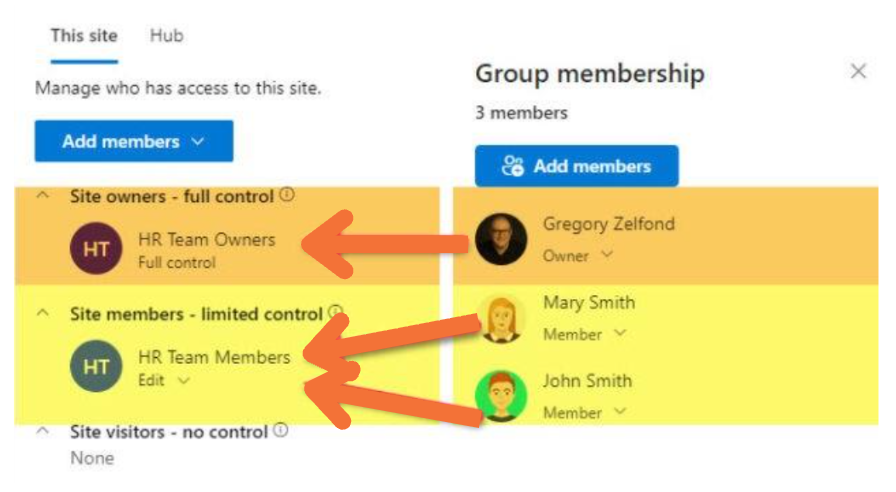
Hub sites themselves do not enforce permissions on associated sites. In other words:
- A hub is not a security boundary
- Each site controls its own permissions
- Hub associations do not grant access
Permission Scenarios
Scenario A — Consistent Audience
- All sites under a hub serve the same business group.
- Permissions can be standard (e.g., Owners, Members, Visitors) across sites
Scenario B — Mixed Audiences
- Teams or divisions with varying sensitivity exist under one hub
- Permissions must be scoped specifically at site or library level
Risks
- Overly permissive membership on one site does not imply access to another
- Users may expect hub association to imply access – this can confuse users
Recommendations
- Use Azure AD groups or Microsoft 365 groups to manage user access consistently
- Standardise permissions templates across sites
- Document security boundaries in IA planning artifacts
Navigation Strategies
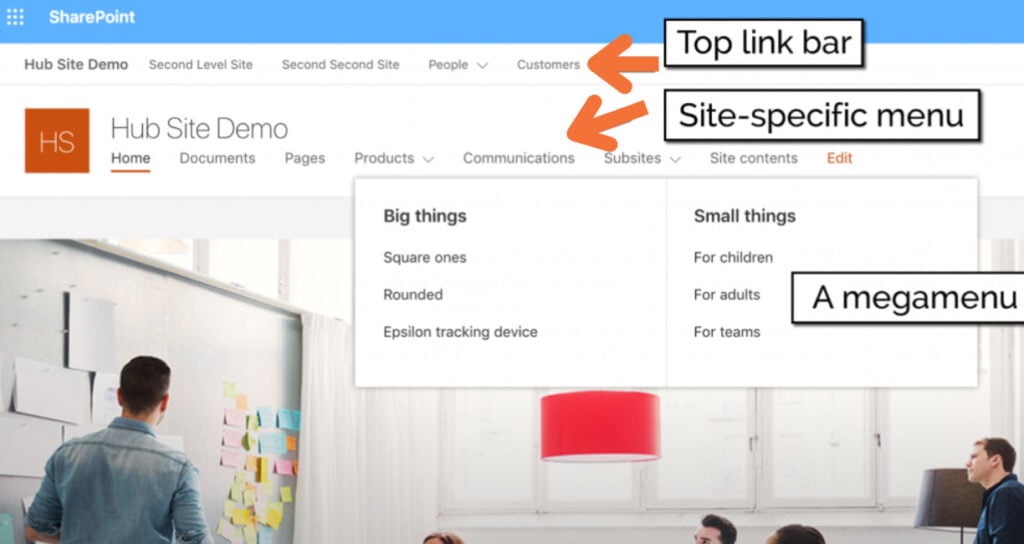
Navigation is among the strongest reasons to use hubs. Hub navigation provides a consistent mega menu across all associated sites.
Planning Navigation
Hub Navigation (Top link bar)
- Should reflect core business functions
- Keep it shallow (2–3 levels) for usability
Regional/Divisional Navigation (Site-specific menu)
- Use child hubs to represent subsegments where needed
- Link back to parent navigation items
Contextual Linking
- Avoid overcrowding navigation with too many links
- Use local site navigation for page level discovery
Governance
- Establish a navigation governance board to approve changes
- Balancing corporate links vs. local links is a political and design challenge
Search & Content Discovery
Hub sites help define search scopes users searching within a hub context typically see results aggregated from all associated sites.
How It Works
- When users search from a hub site, SharePoint’s search index prioritises associated sites
- This scoped search enhances relevance and reduces noise
Considerations
- Managed properties and crawled metadata play big roles in filtering results
- Tagging content with consistent metadata values (e.g., content type, business unit) improves findability
Best Practices
- Apply taxonomy and metadata standards across sites
- Configure query rules for hub scoped search
- Train users on hub search behaviour
Content Organization & Metadata
A hub architecture should reflect information needs, not just org charts
Content Architecture Patterns
Taxonomy Driven Structure
- Use hubs to represent taxonomy facets (e.g., Business Domains, Products)
- Organize sites by functional areas, not merely departments
Metadata Standards
- Leverage term sets across hubs to unify tagging
- Plan metadata governance to prevent sprawl
Governance & Lifecycle Management
Hub architecture amplifies the need for strong governance:
- Naming conventions
- Site provisioning controls
- Onboarding/Offboarding processes
- Content lifecycle & retention policies
Tools and Techniques
- SharePoint site provisioning templates
- PowerShell/SharePoint CLI automation
- PnP templates for site design and hub association
- Policy enforcement via M365 compliance tools
Common Pitfalls & Best Practices
Pitfalls
| Problem | Consequence |
| Uncontrolled site creation | Navigation chaos & search noise |
| Multiple overrides of hub themes | Visual inconsistency |
| Hub association used as a security shortcut | Security gaps |
| No metadata standards | Poor search relevance |
Best Practices
✅ Define hub purpose and rules before provisioning
✅ Use group based permissions consistently
✅ Govern navigation centrally
✅ Standardise metadata & search strategies
✅ Educate site owners on architecture principles
Summary
Designing an effective information architecture using multilevel hub sites in SharePoint Online isn’t just about linking sites together – it’s about:
- Crafting meaningful navigation
- Enforcing brand consistency
- Designing scalable permissions
- Enhancing search and discovery
- Piloting governance across life cycles
When done well, a hub architecture provides clarity, reduces cognitive load, and accelerates productivity. When done poorly, it creates fragmentation and confusion.
The key is planning first, and technology second.
Ready to get started?
If you’re ready to:
- Get a clear picture of your current maturity
- Build a practical roadmap to improve your information management maturity journey
- Unlock the full value of Microsoft 365 for your teams
Reach out to Insentra
Whether you’re just beginning or stuck in “hub site chaos,” we can help you move forward – strategically and sustainably.
NEXT STEPS
If you would like Insentra to help you with any of these topics through your nominated Partner, please contact us.
For more insights on Microsoft 365, SharePoint Online, Teams and more head over to the Insentra blog.