



Introduction
Certificate renewals are supposed to be boring.
Planned. Routine. Low‑risk.
Even when a Root CA certificate is renewed using the existing key pair, most environments expect business as usual certificates continue to be issued, devices stay connected, and users remain unaware that anything changed.
However, in environments using Microsoft Intune with SCEP, even a Root CA renewal that retains the same key pair can introduce an unexpected failure mode. SCEP enrollments begin to fail, newly provisioned Windows devices are unable to authenticate to the network, and Intune starts reporting certificate deployment errors — all without any policy or configuration changes.
At first glance, nothing appears broken:
- NDES (Network Device Enrollment Service) is running
- The Intune Certificate Connector is healthy
- The NAC (Network Access Control) is online and enforcing access policies
Yet despite everything looking correct, certificate enrollment and EAP‑TLS authentication continue to fail — a lesson learned the hard way.
The underlying issue turns out to be deceptively simple: a missing or outdated trust relationship on the device following the Root CA renewal, even though the key pair itself did not change.
This post walks through the environment setup, the symptoms, the root cause, and the validated fix, helping avoid a common SCEP failure that often only surfaces after certificates stop deploying.
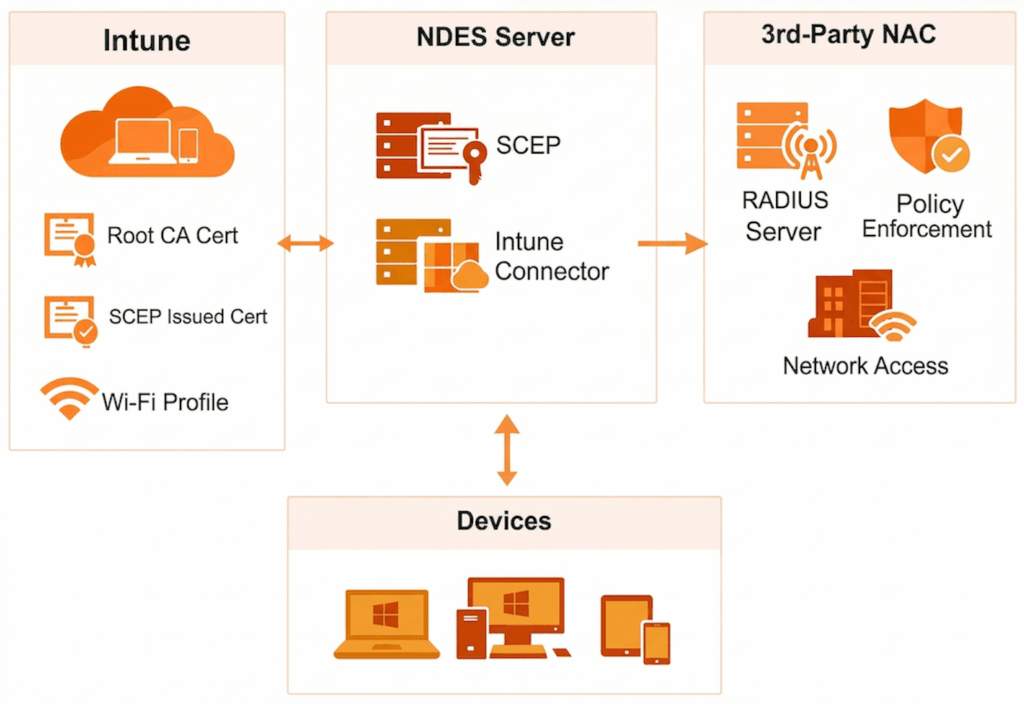
Overview of the Setup
This issue commonly appears in environments using Microsoft Intune, SCEP, and a third‑party Network Access Control (NAC) platform for certificate‑based network authentication.
Intune’s role
- Deploys the trusted Root CA certificate
- Deploys SCEP‑issued certificates (device or user)
- Deploys the Wi‑Fi profile using EAP‑TLS
- Provides device identity and trust
- Does not enforce network access
3rd‑party NAC’s role
- Acts as the RADIUS server for 802.1X authentication
- Validates certificates during EAP‑TLS
- Enforces network access policies:
- VLANs
- Roles
- ACLs
- Quarantine / remediation
- Optionally evaluates Intune compliance or posture
Authentication flow
- Intune installs:
- Root CA certificate
- SCEP‑issued certificate
- Wi‑Fi profile (EAP‑TLS)
- Device connects to the network using EAP‑TLS
- NAC validates the certificate chain and attributes
- NAC grants or denies network access
Common patterns
- Device‑based certificates (most common)
- Best for corporate devices and pre‑logon access
- User‑based certificates
- Typically used for BYOD
- Hybrid approaches
- Certificate authentication plus Intune compliance checks
Note
Intune provisions and configures certificates; the NAC authenticates and enforces access.
This separation of responsibility is crucial to understanding the failure.
The Problem
After renewing the Root CA or Issuing CA certificate, SCEP certificate deployment to Windows devices begins to fail.
No Intune configuration changes were made, yet:
- New certificates are not issued
- Devices fail EAP‑TLS authentication
- Network access is denied
- Intune reports SCEP profile failures
Symptoms
Following the CA renewal, administrators observe:
- Failed SCEP certificate deployments in Intune
- Windows devices unable to enroll for certificates
- Errors appearing locally on the device after renewal
- Existing certificates continuing to work until expiry
- Newly enrolled or reprovisioned devices failing network authentication
This is commonly seen in environments using:
- NDES
- Intune Certificate Connector
- A third‑party NAC relying on certificate trust
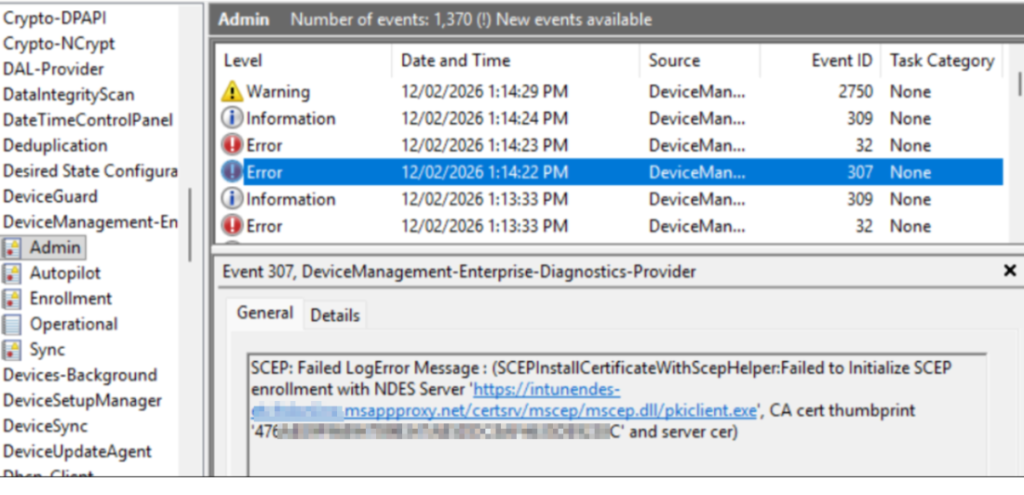
Error Observed on the Device
On affected Windows devices, the error is visible in Event Viewer at:
Applications and Services Logs → Microsoft → Windows → DeviceManagement‑Enterprise‑Diagnostics‑Provider → Admin In this log, the device records Event ID 307 errors during SCEP enrollment.
Root Cause
The issue is caused by certificate trust not being refreshed on Windows devices after the Root CA renewal, even when the renewal is performed using the existing key pair.
When a Root CA or Issuing CA certificate is renewed:
- The certificate validity period and metadata change
- The renewed certificate is published and used by NDES and the Intune Certificate Connector
- Windows devices do not automatically update or re‑trust the renewed CA certificate
Even though the private/public key pair remains the same, the renewed certificate is still treated as a new certificate instance from a trust perspective. If the updated certificate is not redeployed to devices:
- The SCEP server certificate chain cannot be fully validated
- SCEP enrollment fails during certificate issuance
- Intune reports the SCEP profile as failed
- The NAC never receives a valid certificate to authenticate
This confirms the issue is not related to key pair changes, but rather to certificate trust distribution and lifecycle handling on managed devices.
Note
Renewing a Root CA with the existing key pair does not eliminate the need to redeploy the trusted certificate to endpoints.
Devices must explicitly trust the renewed certificate, regardless of whether the key pair changed.
Why Network Access Breaks
EAP‑TLS authentication is entirely dependent on trust:
- The device must trust the CA
- The NAC must trust the same CA
- Any mismatch breaks authentication
After renewal, the NAC often trusts the updated CA, while Windows devices do not, creating a one‑sided trust failure that prevents SCEP enrollment and network access.
The Fix
To resolve the issue.
Reinstall both the Network Device Enrollment Service (NDES) server role and the Microsoft Intune Certificate Connector on the NDES server.
During reinstallation
- New RA (Registration Authority) certificates are automatically reissued
- NDES is re‑registered with the renewed CA certificate
- Trust is re‑established between:
- NDES
- The Certificate Authority
- Microsoft Intune
Once the RA certificates are refreshed, SCEP certificate deployment to Windows devices resumes successfully.
Important: Update the MSCEP Registry Configuration
After the NDES and Intune Certificate Connector installation wizard completes, do not forget to update the MSCEP registry configuration on the NDES server.
Registry Location
HKEY_LOCAL_MACHINESOFTWAREMicrosoftCryptographyMSCEP What Needs to Be Updated
NDES maps SCEP requests to certificate templates using registry values. These values must match the certificate template name (not the display name) used by your SCEP profile in Intune.
To update the registry:
- Identify the Purpose of the certificate template (found on the Request Handling tab of the template)
- Update the corresponding registry value with the template name
Certificate Template Purpose Mapping
| Certificate Template Purpose | Registry Value to Edit | Value Seen in Intune SCEP Profile |
| Signature | SignatureTemplate | Digital Signature |
| Encryption | EncryptionTemplate | Key Encipherment |
| Signature and encryption | GeneralPurposeTemplate | Digital Signature / Key Encipherment |
What Happens If the Registry Is Not Updated
If the MSCEP (Microsoft Simple Certificate Enrollment Protocol) registry values are not updated after reinstalling NDES and the Microsoft Intune Certificate Connector, the environment may appear to be fully functional again but authentication will still fail.
In this scenario:
- NDES and the Intune Certificate Connector are installed successfully
- RA certificates are reissued
- Intune SCEP, Trusted Certificate, and Wi‑Fi profiles are successfully delivered to the device
- The device receives a certificate
- Wi‑Fi authentication using EAP‑TLS still fails
This can be misleading, as Intune shows no deployment errors, yet the device cannot authenticate to the network.
Evidence on the NDES Server (Wrong Template Used)
When this occurs, the issue is visible in Event Viewer on the NDES server, under: Event Viewer
Applications and Services Logs → Microsoft → Intune → CertificateConnectors → Operational In this log, Event ID 4004 entries show that the SCEP request was processed successfully, but the wrong certificate template was used. The event details include a line similar to:
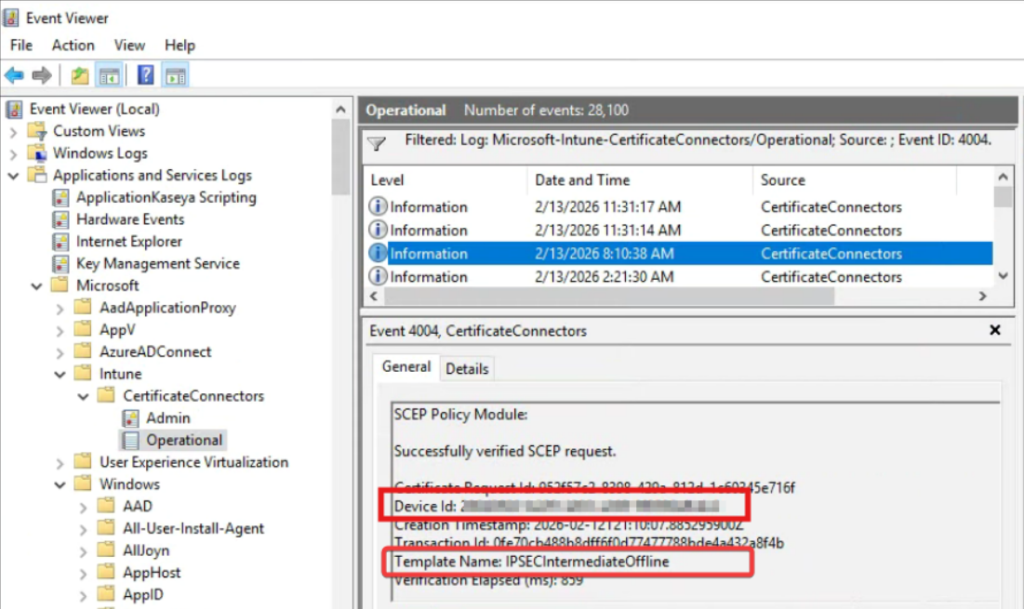
This indicates that:
- NDES is processing SCEP requests
- The request is valid
- The certificate is being issued using an unexpected or incorrect template
- The template does not match the one configured for the Intune SCEP profile
As a result, the issued certificate does not meet the requirements for EAP‑TLS authentication, and network access is denied.
Why This Fix Works
- RA certificates are tightly bound to the CA certificate state
- NDES does not automatically regenerate RA certificates after a CA renewal
- Reinstalling NDES and the Intune Certificate Connector is the only supported method to force RA certificate reissuance
Even when the Root CA is renewed using the existing key pair, RA certificates can still become invalid from a trust perspective.
Key Takeaways
- Renewing a Root CA is not a zero‑impact operation for Intune SCEP
- Using the existing key pair does not prevent failures
- SCEP failures after CA renewal can originate on the NDES server, not the device
- The Microsoft‑supported fix is to reinstall NDES and the Intune Certificate Connector
- Plan CA renewals with NDES remediation steps included
Insentra’s Modern Workplace team helps organisations get ahead of challenges across the Microsoft stack before they become critical issues. Whether you are planning a CA renewal, resolving SCEP failures, or building robust runbooks for the future, we are here to help. Contact our team to ensure your environment is secure, resilient and ready for what comes next.
Reference
Microsoft official guidance: SCEP deployment to Windows 10 devices fails after you renew the CA certificate