


Introduction
Welcome! This guide will introduce you to Microsoft Teams, a powerful platform that brings together conversations, meetings, files, and apps in one central workspace.
What is Microsoft Teams?
Microsoft Teams is the ultimate messaging app for your organisation. A workspace for real-time collaboration and communication, meetings, file, and app sharing, and even the occasional emoji! All in one place, all in the open, all accessible to everyone.
Think of it as your digital office, where you can:
- Chat with individuals and groups
- Meet face-to-face (virtually!) with video conferencing
- Share and co-edit files in real-time
- Organise your work into dedicated spaces called ‘Teams’ and ‘Channels’
- Access various apps and tools directly within Teams
What are the Benefits?
| Benefits | What it Means for you |
| All-in-one workspace | No need to switch between multiple tools |
| Real-time communication | Instant decisions, reduced email clutter |
| Seamless file collaboration | Work together in Word/Excel without emailing files |
| Scalable | Useful for small teams or entire organisations |
| Mobile-friendly | Stay connected using the mobile app |
Getting started with Microsoft Teams
This section will take you through the basics of setting up and navigating Teams.
Understanding the Teams Interface
Once you are signed in, you will see the main Teams interface – let’s explore the key areas:
| The App Bar | 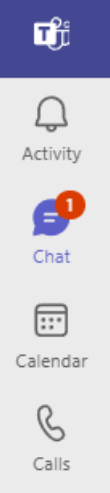 This is your primary navigation and serves as a quick access point for commonly used apps within Teams. It includes: • Activity: See all your notifications, mentions, and replies in one place • Chat: Access all your one-on-one and group chats • Teams: View and manage all the Teams and Channels you belong to • Calendar: Schedule and join meetings (Teams Calendar syncs with your Outlook one) • Calls: Make and receive calls (if enabled for your account) • Files: Access all your recent files, cloud storage, and files shared in Teams • Apps: Discover and manage integrated applications • More added apps: Click the three dots (…) to see more apps you can pin to your app bar |
| Search Bar (Top) | Quickly find messages, files, people, and commands. |
| Profile Picture (Top Right) | Manage your status, settings, and profile. |
Setting Your Status Profile
If you want to make sure people know when you are busy or away from your desk, set your status in Teams. The little dot on your profile indicates if you are available or not.
| SET YOUR PRESENCE | To change your status, select your profile picture at the top right of Teams. Select your current status to choose another status from the list: Available: You’re active and ready to chat Busy: You’re in a meeting or focused on work Do Not Disturb: You won’t receive notifications (only urgent messages from priority Contacts will come through) Be Right Back: You’re temporarily away Appear Away: You’re away for an extended period, Teams will automatically set the status in some cases, like when you’re on a call. | 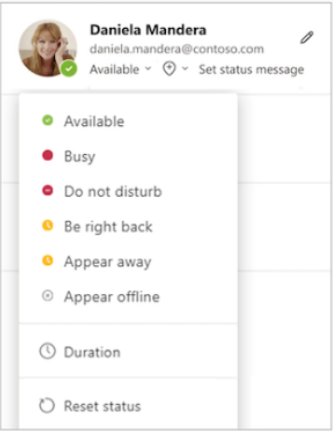 |
| Add a status message | Click on your profile picture and then ‘Set status message’ to let others know what you’re up to. | |
| SET A DURATION FOR YOUR STATUS | When you want to change your status for a specific period of time – for example, to set ‘Do not disturb’ for an hour of concentrated work – you can set a duration so that Teams will automatically reset your status at the end of the allotted time. | |
| You can set durations for any status except Available. Select your profile picture > current status > Duration  | 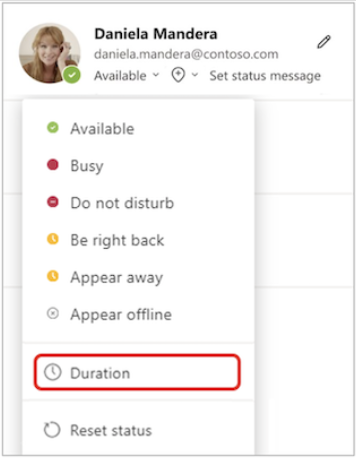 | |
| Under Status, select the status you want to show going forward. Under Reset status after, select the amount of time you want that status to last. | 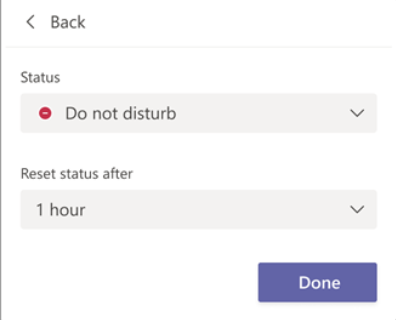 | |
| Or, if none of the suggested times work for you, select Custom under Reset status after and enter the date and time. Select Done. At the end of the period you entered, Teams will automatically reset your status based on your activity, your calendar, and the state of your computer. | 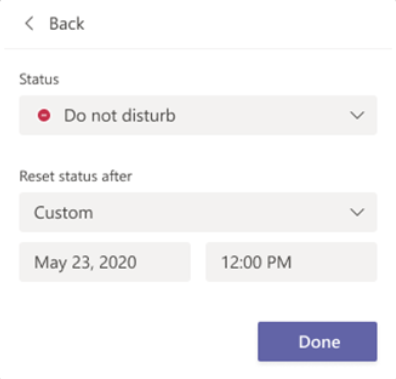 | |
Manage your Device Settings
Manage your microphone, camera, and other device settings in Microsoft Teams.
- Sign in to Teams on your desktop and select Settings and more

- Select Settings
 > Devices
From Devices, you can:
- Select Manage devices to connect Bluetooth-enabled Teams devices, like displays or desk phones
- Adjust Audio settings by choosing your primary audio device, Speaker, and Microphone from their dropdown menus
- Automatically adjust mic sensitivity to make sure you’re always heard
- Sync device buttons to use all the buttons on your device. The Teams button will always work
- Make a test call to test your call quality
- Adjust Noise suppression to suppress background noise
- Turn on Voice isolation to isolate your voice from background noise and other voices while speaking. Only your voice will be audible. Set up your voice profile to enable this setting
- Turn on Spatial audio to create more immersive sound in meetings
- Secondary ringer rings another device for all incoming calls. The default is set to None, and the dropdown menu will list available devices you can choose from
Change Video Settings
- Choose your preferred Camera device from the dropdown menu
- Turn on Automatically adjust camera controls or open your camera settings
- Turn on Green screen for a better look when you’re using a virtual background
- Mirror my video – Only change the view for you. This setting doesn’t currently work in Together mode
- Turn on Adjust brightness to improve the quality of your video in low light conditions
- Turn on Soft focus to smooth your appearance for a polished look
- See a preview of your video
Core Features of MS Teams
Chat
Use Microsoft Teams to chat online with your colleagues
| Starting a new Chat | • Click on Chat in the left-hand app bar • Click the New chat icon (a square with a pen) at the top of the chat list  • Type the name(s) of the person or people you want to chat with |
| Sending a Message | • Type your message in the box at the bottom of the chat window • Press Enter or click the Send button (paper airplane icon)  |
| Formatting your message | • Click the Format button (looks like an ‘A’ with a pen)  to the right of the message box to access options like bold, italics, lists, and more to the right of the message box to access options like bold, italics, lists, and more |
| Attaching Files | • Click on the  button to the right of the message box and select Attach files button (paperclip icon) button to the right of the message box and select Attach files button (paperclip icon)  • Choose to upload from your computer or OneDrive (when available) |
| Using Emojis, GIFs, and Stickers | • Click the respective icons to the right of the message box  to express yourself or just add fun to your chats to express yourself or just add fun to your chats • Say more, more quickly, with quick reactions. Hover over a message and select a commonly used emoji in the pop-up menu. It will appear in the corner of the message • Select More reactions  to choose from a full list of reactions to choose from a full list of reactions |
| Replying to Specific Messages | • Hover over a message and click the Reply with Quote icon (quotation marks) to reply to the specific message |
| Mentions (@) | • Type @ followed by a person’s name to tag them and ensure they get a notification in their Activity feed or in their @mentions list |
Teams and Channels
Teams are collections of people, conversations, files, and tools all in one place.
Channels are dedicated sections within a Team, often organised by topic, project, or department.
| Understanding Teams | • Teams are typically created for specific departments, projects, or broad groups of people • They provide a centralised hub for all related activity |
| Understanding Channels | • Every Team has a default General channel for announcements and broad discussions • Channels help organise conversations and content by specific topics within a Team. For example, a Marketing Team might have channels like ‘Social Media,’ ‘Campaign Planning,’ and ‘Analytics’ |
| Navigating Teams and Channels | • Click on Chat in the left-hand app bar (you will notice that your Chats and Teams all sit together) • You will see a list of all the Teams you belong to • Click on a Team name to expand it and see its channels • Click on a channel to view its conversations (Posts tab), files (Files tab), and other tabs |
| Posting in a Channel (Posts Tab) | • In the selected channel, go to the Posts tab; which should show by default (you will see other tabs if they have been added) • Type a new message by clicking on the Start a Post button at the bottom – Or click Reply to any previous conversation thread • You can use formatting, attach files, and @mention individuals or even the entire channel (e.g., @team name or @channel name if enabled) to get their attention |
| Working with Files in Channels (Files Tab) | • In the selected channel, go to the Files tab (or select Files from the Posts drop down menu) Here you can: – Upload new files from your computer – Create new Office documents (Word, Excel, PowerPoint) – Open and co-edit existing files directly within Teams or in their native applications – Share files by generating a link |
Meetings
Teams meetings allow you to connect with colleagues face-to-face, share your screen, and collaborate in real-time
| Scheduling a Meeting | • Click on Calendar in the left-hand app bar • Click New meeting/event in the top right corner • Fill in the meeting details: title, required attendees, date, time, and location (if applicable) • Add a description and any relevant files • Click Send. Your Attendees will receive an Outlook invitation | |
| Joining a Meeting | • From your Teams Calendar, click on the meeting and then Join • From an Outlook meeting invitation, click the Join Microsoft Teams Meeting link • In a chat or channel, if a meeting is in progress, you will see a ‘Join’ button | |
| Meeting Controls (During a Meeting) | • Camera On/Off: Toggle your video • Mic Mute/Unmute: Mute yourself to reduce background noise • Share Content: Share your screen, a specific window, or a PowerPoint presentation • Raise Hand: Virtually raise your hand to indicate you want to speak • Chat: Open the meeting chat to send messages to participants • Reactions: Use emojis to react to what’s being said • More actions (…): Access additional options like recording the meeting, turning on live captions, and more | |

| Meet Now | • In a Chat , click the drop-down menu next to the phone icon, select Video Call or Audio Call to start an instant meeting with the participants of that chat/channel | 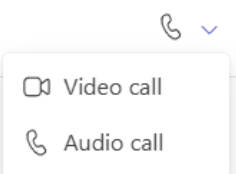 |
Productivity Tips for Microsoft Teams
| Customise Your Notifications | Go to Settings > Notifications and activity to tailor how and when you receive alerts. This helps reduce distractions. |
| Use @Mentions Strategically | Only @mention people or channels when you need their direct attention. Avoid overusing @channel or @team mentions. |
| MOVE Important Chats and Channels | Right-click on a chat and select Move to, or right-click on a channel and select Show in to move it into your Favourites section for quick access. (You can create more ‘New sections’ to help organise your chats and channels) |
| Master the Search Bar | Use Ctrl + E (Windows) or Cmd + E (Mac) to quickly access the search bar. You can type commands like /files to see recent files or /unread to see unread activity. |
| Utilise Keyboard Shortcuts | Learn common shortcuts to navigate Teams faster (e.g., Ctrl + Shift + M to mute/unmute during a call, Ctrl + N for a new chat). You can find a full list by typing Ctrl + . from anywhere within Teams. |
| Organise Your Teams and Channels | Keep your channels focused on specific topics. If your organisation allows, consider using private channels for sensitive discussions. |
| Leverage the Files Tab | Use the Files tab within channels to store and collaborate on documents. It’s a central repository for team-related files. |
| Set Your Status Message | Let your colleagues know if you are in a meeting, out of office, or focused on a task by setting a clear status message. |
| Use Reactions | Instead of typing ‘OK’ or ‘Thanks,’ use quick reactions to acknowledge messages and keep conversations cleaner. |
| Explore Apps | Check the ‘Apps’ section to see if there are tools your team uses that can be integrated directly into Teams for a more streamlined workflow. |
Conclusion
Microsoft Teams is a dynamic tool designed to enhance your daily work and foster better collaboration. By familiarising yourself with these core functionalities and productivity tips, you’ll be well on your way to becoming a proficient Teams user.
If you don’t have the Teams app downloaded to your desktop – access Teams directly through your web browser at Sign In | Microsoft Teams
If you want to take your Microsoft Teams skills to the next level or need help optimising collaboration within your organisation, contact us today. Our team is ready to guide you with personalised tips, training, and support to make Teams work for you.
Resources
Get Started with Microsoft Teams
Microsoft Teams help & learning
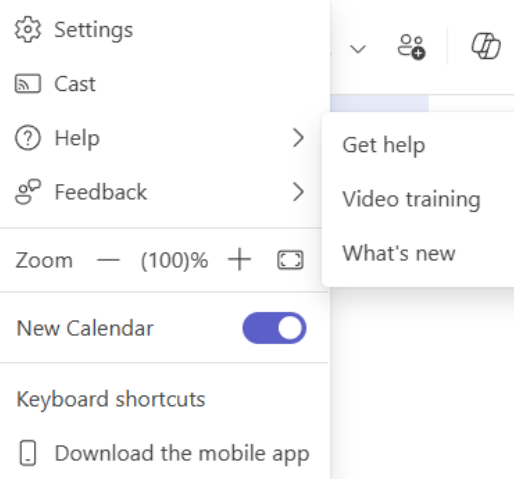
To access  Help within Teams, click on Settings and more
  , then select Get help, Video training, What’s new
Search for a topic you want or use the tabs at the top to browse.